
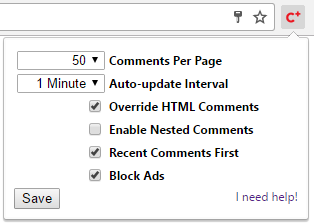
This help article covers the options available in the ‘C+’ PB Comments Plugin:
Prerequisites
Please note that the plugin options are only available when on the Poll Bludger blog itself. You can access them by clicking upon the red ‘C+’ icon in the upper-right of your browser. If the ‘C+’ icon is grey, the options will not be accessible.
Comments Per Page
This option allows you to fine-tune the number of comments displayed per page, and also modifies the maximum number of comments that will be loaded at a time when pressing the ‘Load More’ button. A number of options from 20 to 100 comments per page are available.
Default value: 50
Recommended value: Any
Auto-update Interval
This option controls how frequently the plugin will check for (and display) newly posted comments. This allows you to see new posts in real-time as they occur, without manually refreshing or navigating between pages. Intervals from 1 minute to 60 minutes can be selected. Alternately, select the ‘Never’ option to disable auto-update entirely.
Default value: 1 Minute
Recommended value: 1-5 Minutes
- Note – Auto-update functionality will only run if both 1) the ‘Recent Comments First’ option is enabled, and 2) you have not used the pagination controls to jump to any page other than ‘Page 1′ (using ‘Load More’ is fine, and will not interfere with auto-update).
Override HTML Comments
This option controls whether or not the plugin should replace Poll Bludger’s HTML comments. When this option is enabled, the plugin will always run whenever at least one comment (of any type) exists within the page. When this option is disabled, the plugin will only run when it detects the presence of at least one AJAX comment. Thus this option provides a quick method of disabling the plugin if desired.
Default value: Off
Recommended value: On
- Note – As Poll Bludger has (at least for now) reverted back to HTML comments, this option must be enabled if you want the ‘C+’ plugin to do anything. For legacy purposes the default value of this option is ‘Off’, so the first thing to do after installing the plugin will generally be to switch the ‘Override HTML Comments’ option ‘On’.
Enable Nested Comments
This option allows you to create (and view) nested threads of comments. Specifically, when enabled you will be able to reply directly to any individual comment on the page, and your reply will be rendered below the comment you’re replying to. When disabled you can still quote from any comment you like, however all replies will be rendered in strictly chronological order.
Default value: On
Recommended value: Any
- Note – Having this option enabled may cause issues when using the paginator to jump across pages. For instance, if you jump to page 10 and it includes nested replies to a comment originally posted on page 9, those replies won’t be displayable because their parent comment is on page 9, which was skipped over. Note that using the ‘Load More’ button avoids this issue, as does setting the ‘Enable Nested Comments’ option to disabled.
Recent Comments First
This setting controls the sort/display order of the comments. When enabled the most recently posted comment will appear as the first comment on the first page, and the oldest comment will appear as the last comment on the last page. When disabled the oldest comment will appear as the first comment on the first page, and the most recently posted comment will appear as the last comment on the last page.
Default value: On
Recommended value: On
- Note – Setting this option to disabled will also disable the ‘Auto-update’ functionality. The ‘Auto-update’ feature only works when the ‘Recent Comments First’ option is enabled.
Block Ads
This setting controls whether or not the plugin also attempts to remove display ads from the page. When enabled attempts will be made to locate and remove any display ads and other sponsored content from the page. When disabled, advertising and similar content is unaffected.
Default value: Off
Recommended value: Any
- Note – Setting the ‘Override HTML Comments’ option to disabled will also disable the ad-blocking functionality. Ad-blocking only works when the ‘Override HTML Comments’ option is enabled, and should be considered highly experimental and not guaranteed to produce any specific results.
Miscellaneous
- Note – This plugin will also replace the default HTML comment submission with an AJAX variant. This means that the page will no longer refresh when you add a comment. Instead, your new comment will either load in automatically after posting (if the ‘Recent Comments First’ option is enabled and you have not used the paginator to navigate away from ‘Page 1′) or when you jump to the corresponding page or progress using the ‘Load More’ button (in all other cases). You can also manually refresh the page if you like.
- Note – To get better feedback about the current status of your post, it’s recommended to always use the ‘Preview’ button before submitting. If you do this, then when you hit ‘Submit’ a loading indicator will appear in the preview area. When the loading indicator disappears, your new comment has been successfully submitted!
Hi A R,
I can’t get the Block function or numbered comments on C+. I have uninstalled and reinstalled C+ and the Enable html comments box is ticked. I have Windows 10 and a Chrome browser. I don’t know what else I can do!?!
Can you help? dtt is driving me crazy!