
undenAIably User Guide & Manual
Hover or tap a badge on the screenshots below (or the buttons beneath) to inspect controls, available interactions, and configuration options.
1. Main Dashboard & Core Modules
When you launch undenAIably, the Main Dashboard gives you immediate access to four customizable learning and communication modules surrounding the central AI Soundboard hub.
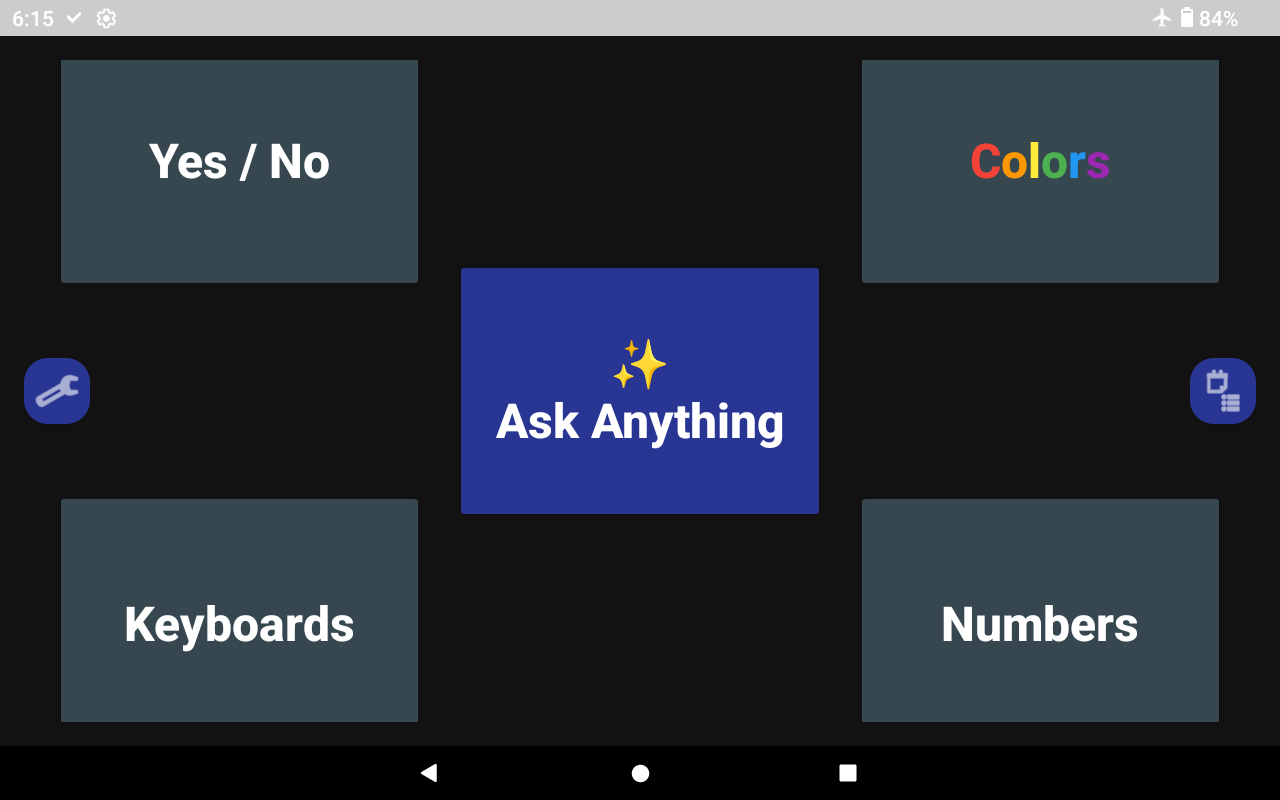
Ask Anything / Say Anything (Central AI Hub)
In standard caregiver mode, this button reads “Ask Anything” and opens the AI Board Editor. When Child Mode is enabled in Settings, it automatically changes to “Say Anything” and opens the child-friendly visual board navigator instead.
2. Child Mode, Auth Wall & “Say Anything” Navigator
While Child Mode is disabled by default on a fresh install so you can explore the app, we strongly recommend enabling Child Mode once your initial setup is complete (unless you are bulk-editing or exporting boards).
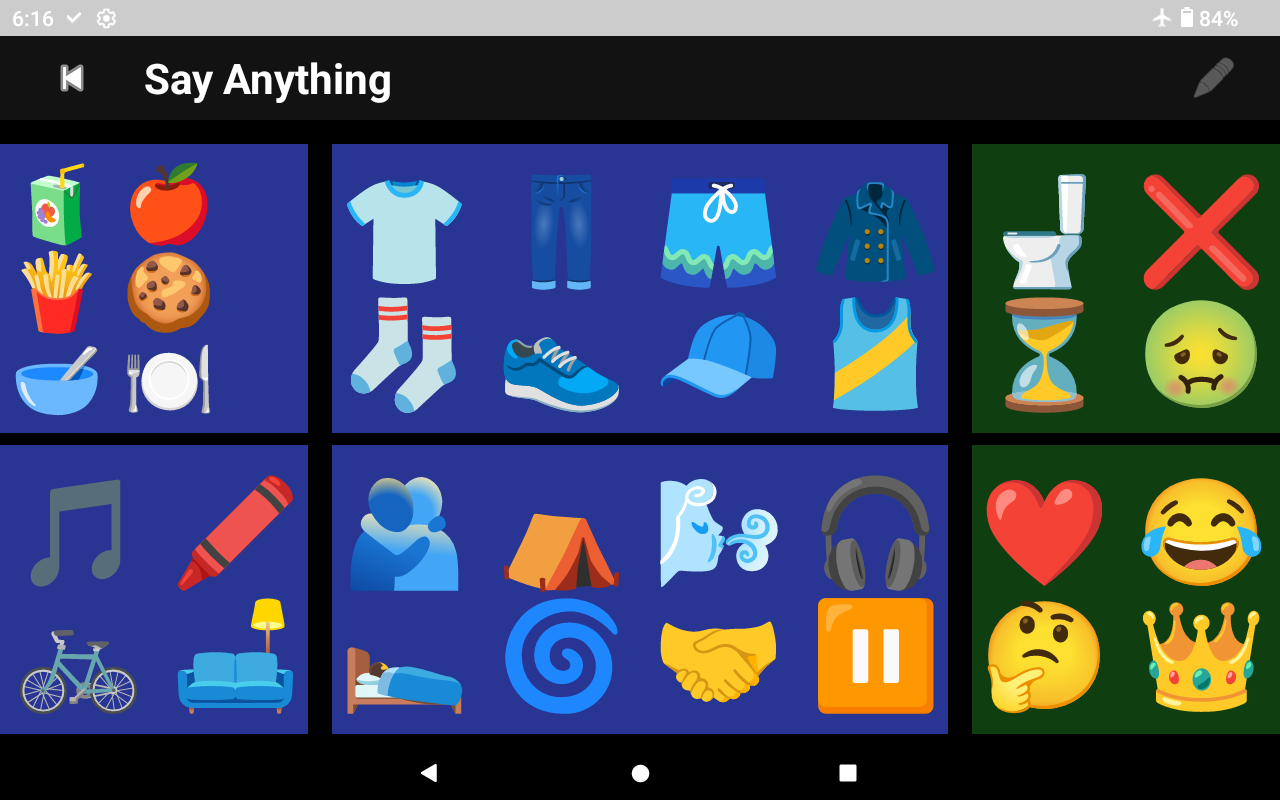
Return to Main Dashboard
Exits the “Say Anything” visual board navigator and returns directly to the 5-tile Main Dashboard.
3. Active Soundboards & Device-to-Device QR Sharing
When a soundboard is opened, undenAIably speaks the contextual prompt aloud and presents large, symmetrical choice tiles. In caregiver mode (when Child Mode is off), additional management and QR export icons appear in the top-left bar.
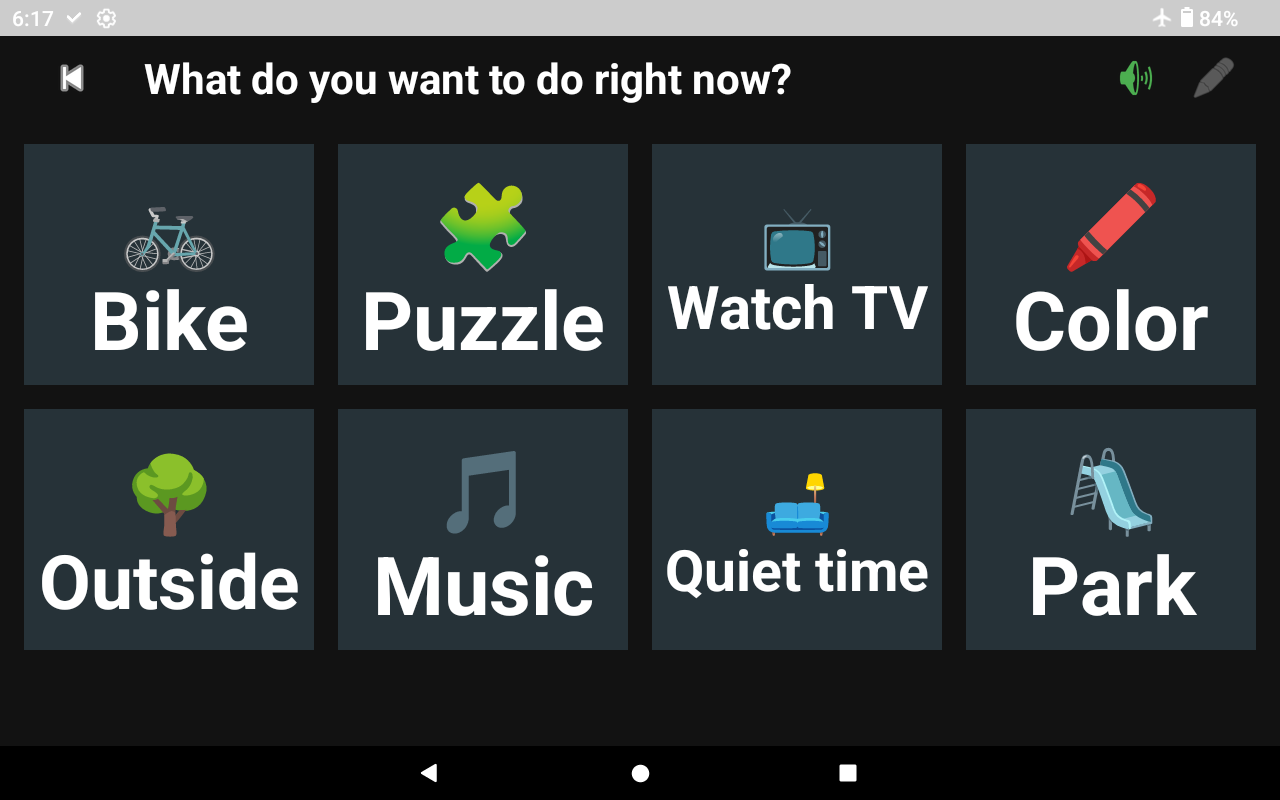
Simplified Child-Friendly Prompt Header
In Child Mode, the top bar displays the simplified spoken question or prompt directed to your child (e.g., “What do you want to do right now?”).
Exporting Boards via QR Code (Caregiver Mode Toolbar)
When viewing a board with Child Mode turned off, the top-left toolbar displays inline board management and QR sharing controls:
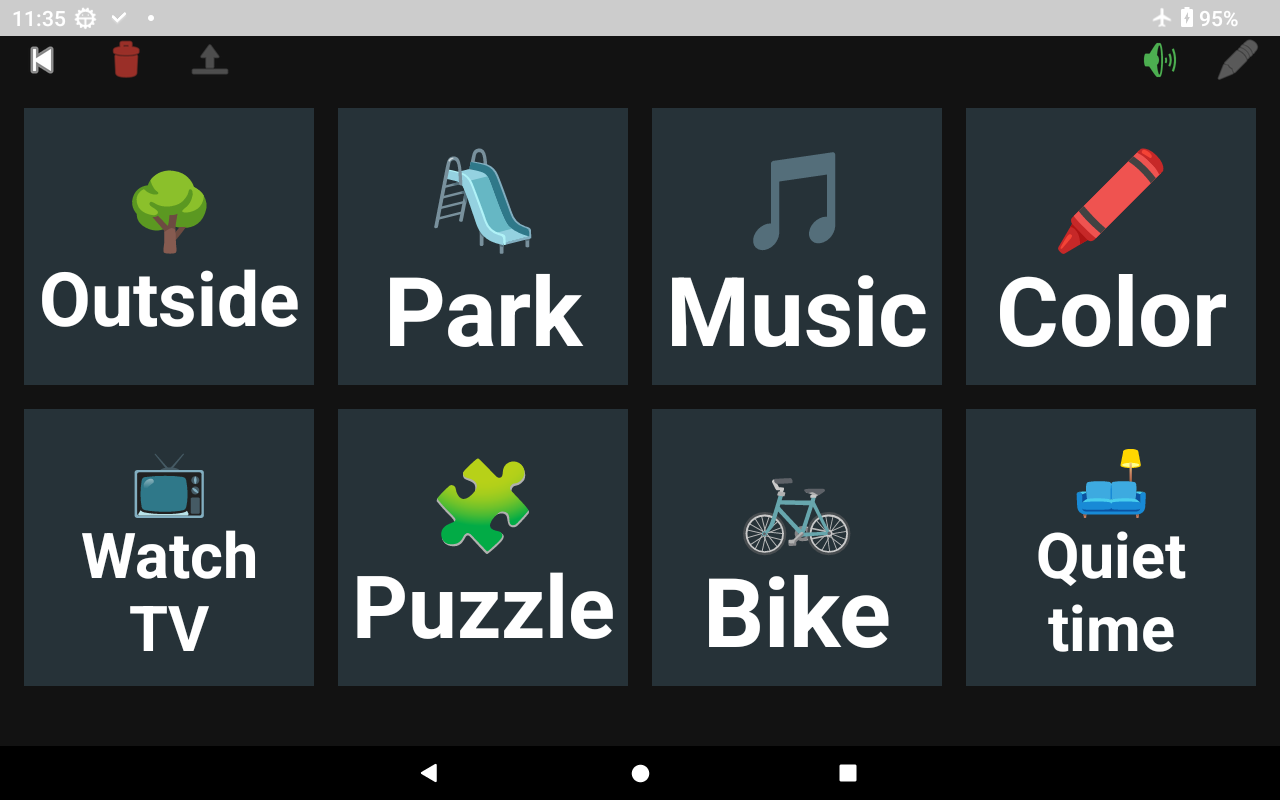
Export Board as QR Code (Top-Left Upload Icon)
Tapping this icon generates an on-screen QR code encoding the entire current board. Another phone or tablet running undenAIably can scan this code from the Board Editor to import the board instantly—consuming zero ᗢ credits!
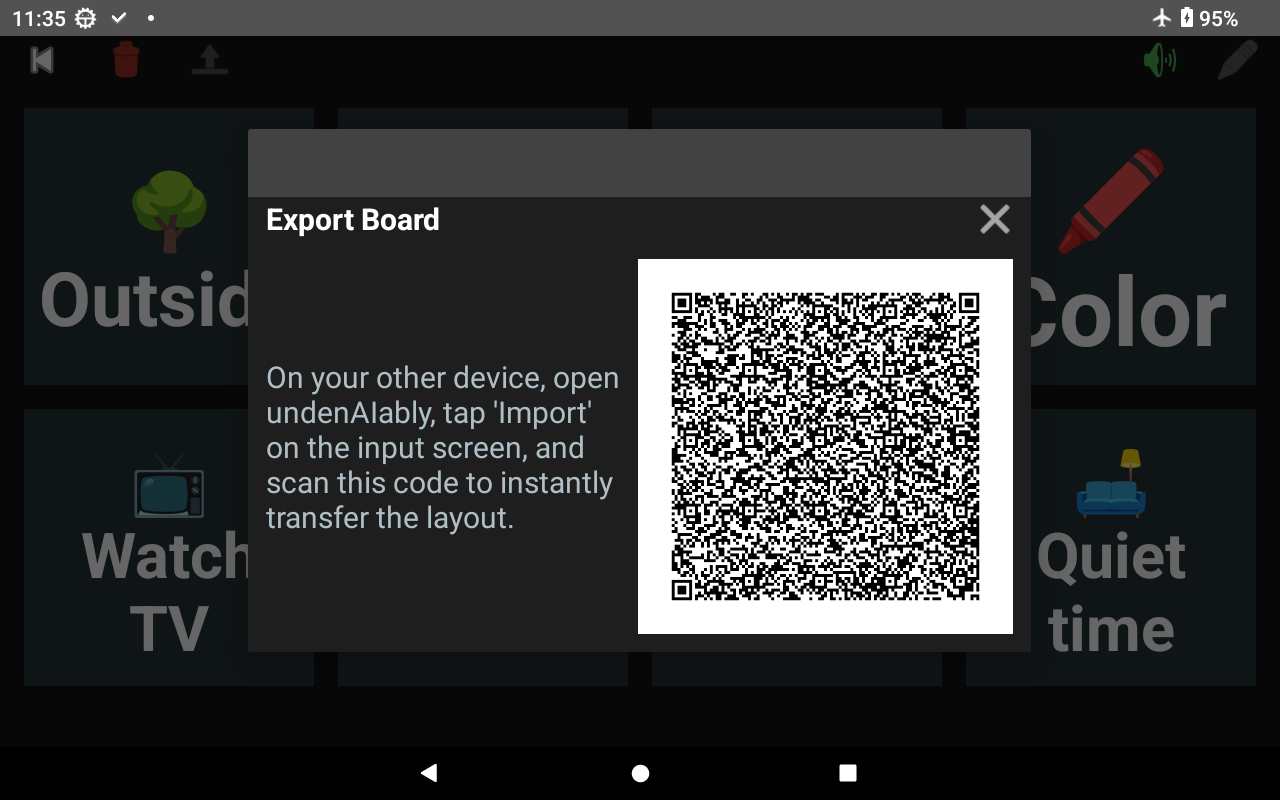
Scannable Board Layout QR Code
Point a second device’s undenAIably QR scanner at this code to clone the exact board layout, emojis, and spoken phrases without re-typing the prompt or spending any ᗢ.
4. Creating, Searching & Importing AI Boards
The Board Editor lets you synthesize custom boards from text, voice dictation, or camera photos—and doubles as a full-text search engine for your saved board history.
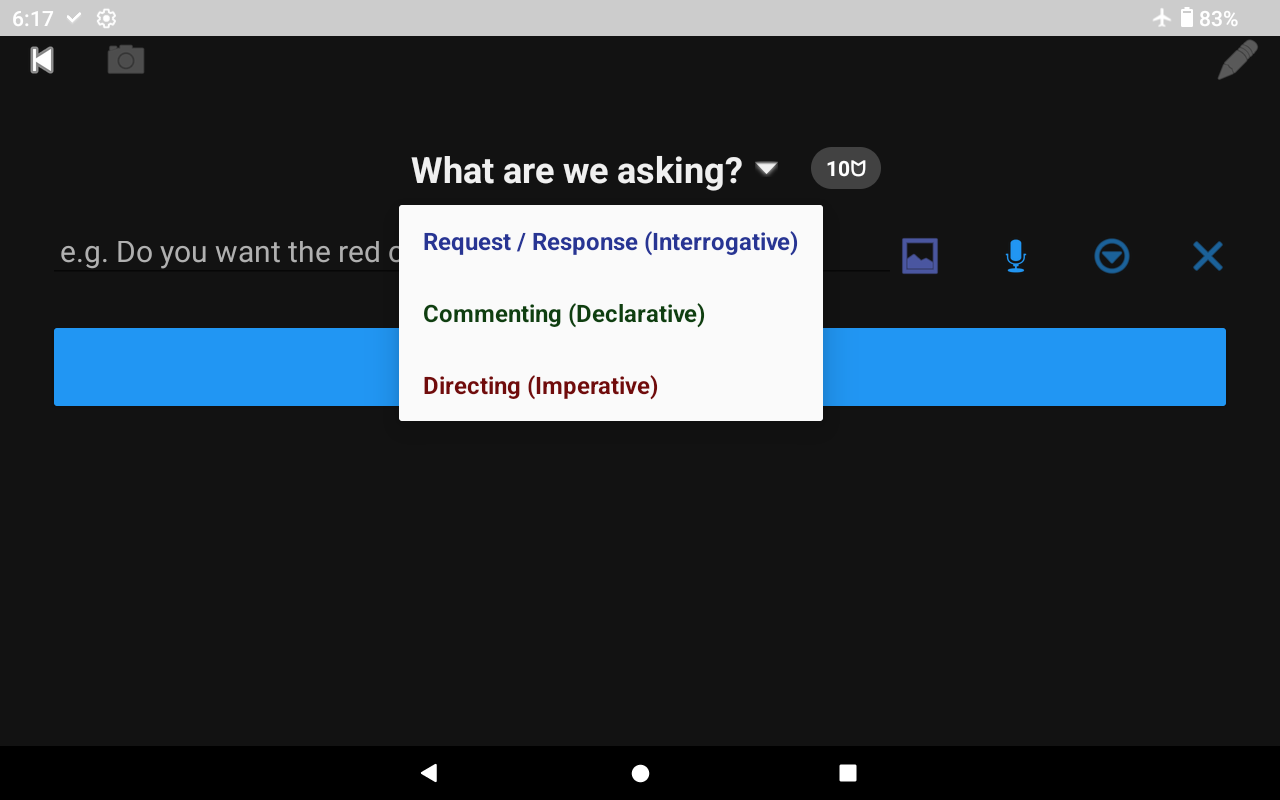
Understanding the 3 Color-Coded Board Intents
Request / Response (Interrogative)
Header asks: “What are we asking?” Ideal for choices (“Apple, orange or banana?”) and decision-making (“What should we do next?”). Corresponds to Blue tiles in Child Mode.
Commenting (Declarative)
Header asks: “What are we talking about?” Ideal for observations and shared activities (“We are reading Cat in the Hat”, “We are playing on the beach”). Corresponds to Green tiles in Child Mode.
Directing (Imperative)
Header asks: “What are we doing?” Empowers your child to command actions during play or routines (“Build it tall!”, “Read one more book”, “It’s time for bed”). Corresponds to Red tiles in Child Mode.
Import Board via QR Scanner (Top-Left Camera Icon)
Opens the camera to import an exported board QR code from another device. Importing via QR is instantaneous and costs zero ᗢ credits.
5. Keyboards, Core Vocab & Self-Learning Dynamic Mode
The Keyboards module pairs clinical core vocabulary and letter grids with an interactive sentence strip so your child can chain words together and speak them either as a statement or with questioning inflection.
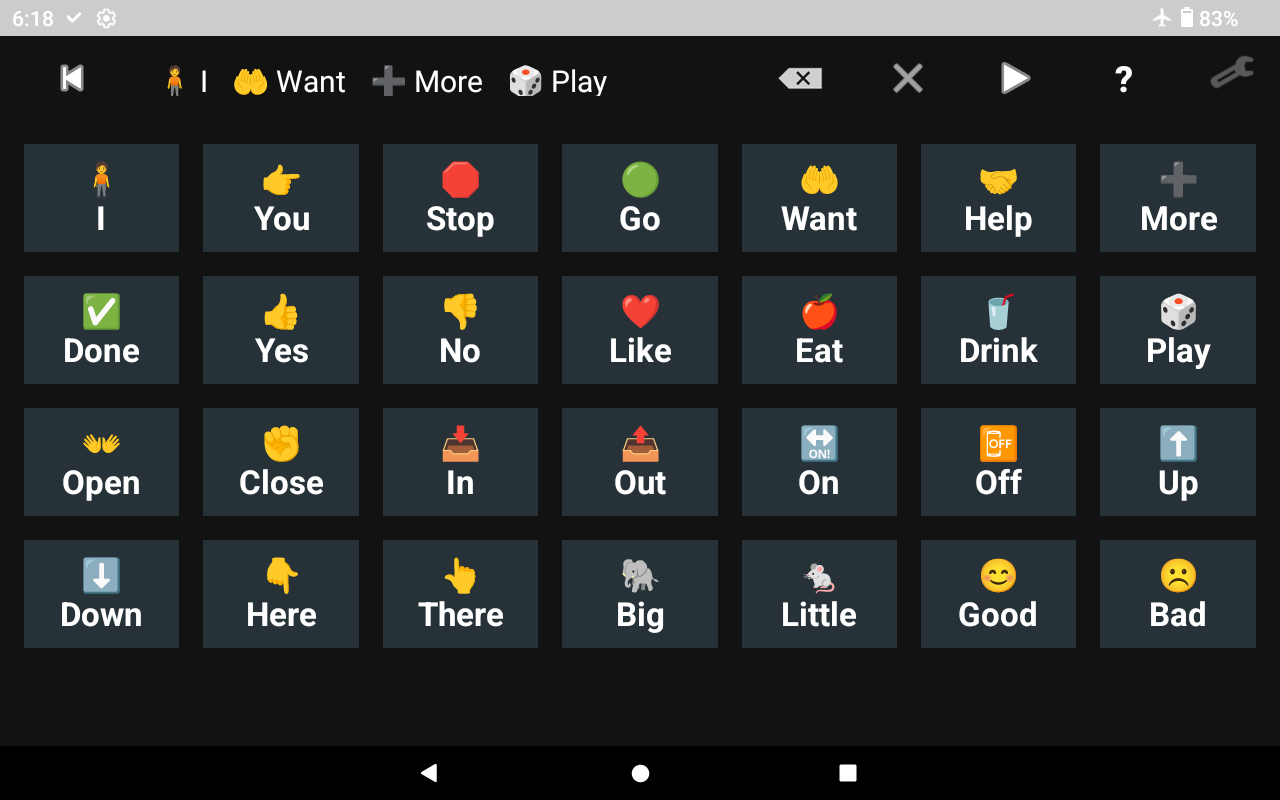
Interactive Sentence Strip
As your child taps words in the grid below (e.g., “I” + “Want” + “More” + “Play”), they accumulate sequentially in this top phrase bar.
Keyboard Configuration: Presentation Styles & Interaction Modes
Tapping the top-right Wrench Icon inside the Keyboards module opens the configuration menu, allowing you to switch between symbol/vocabulary grids and literacy/phonetics letter boards:
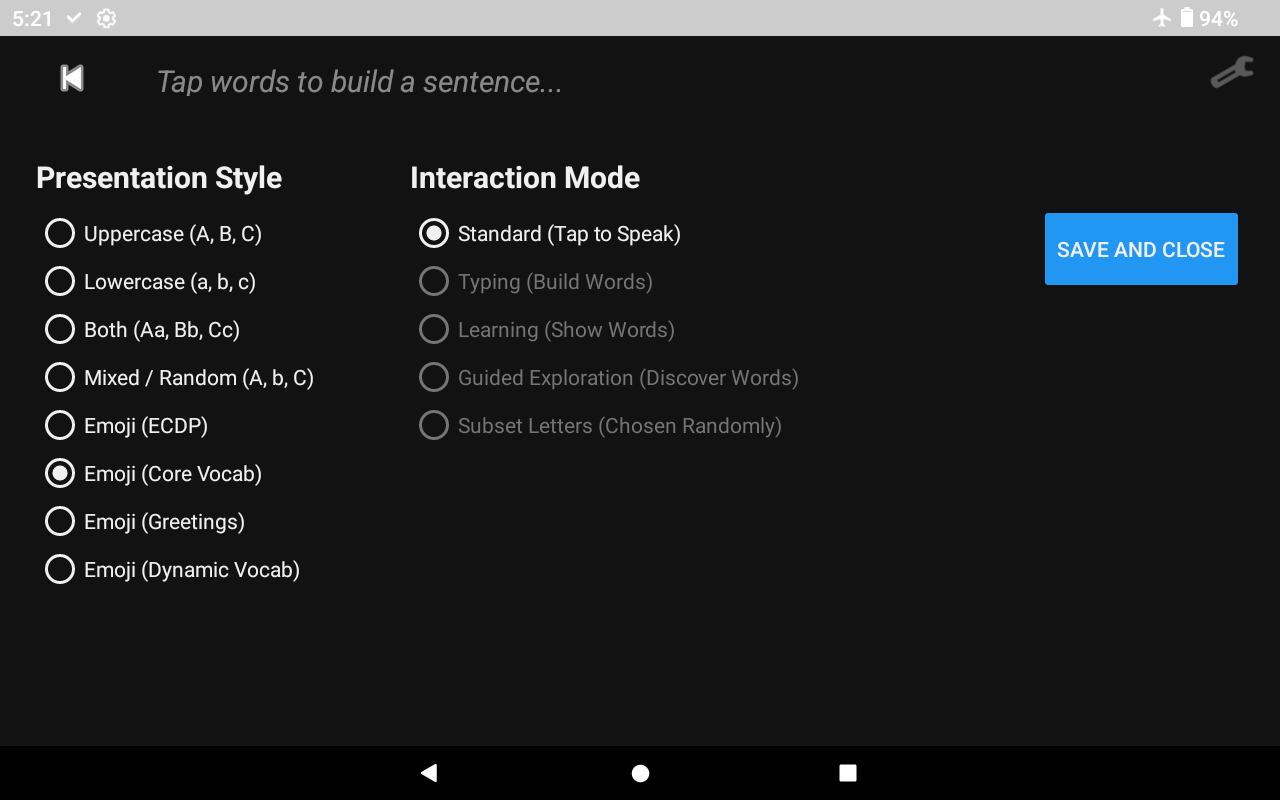
Alphabet & Case Presentation Styles
Choose Uppercase (A, B, C), Lowercase (a, b, c), Both (Aa, Bb, Cc), or Mixed / Random (A, b, C) to help your child master orthographic mapping and letter recognition across different case styles.
Alphabet & Orthographic Mapping Grid
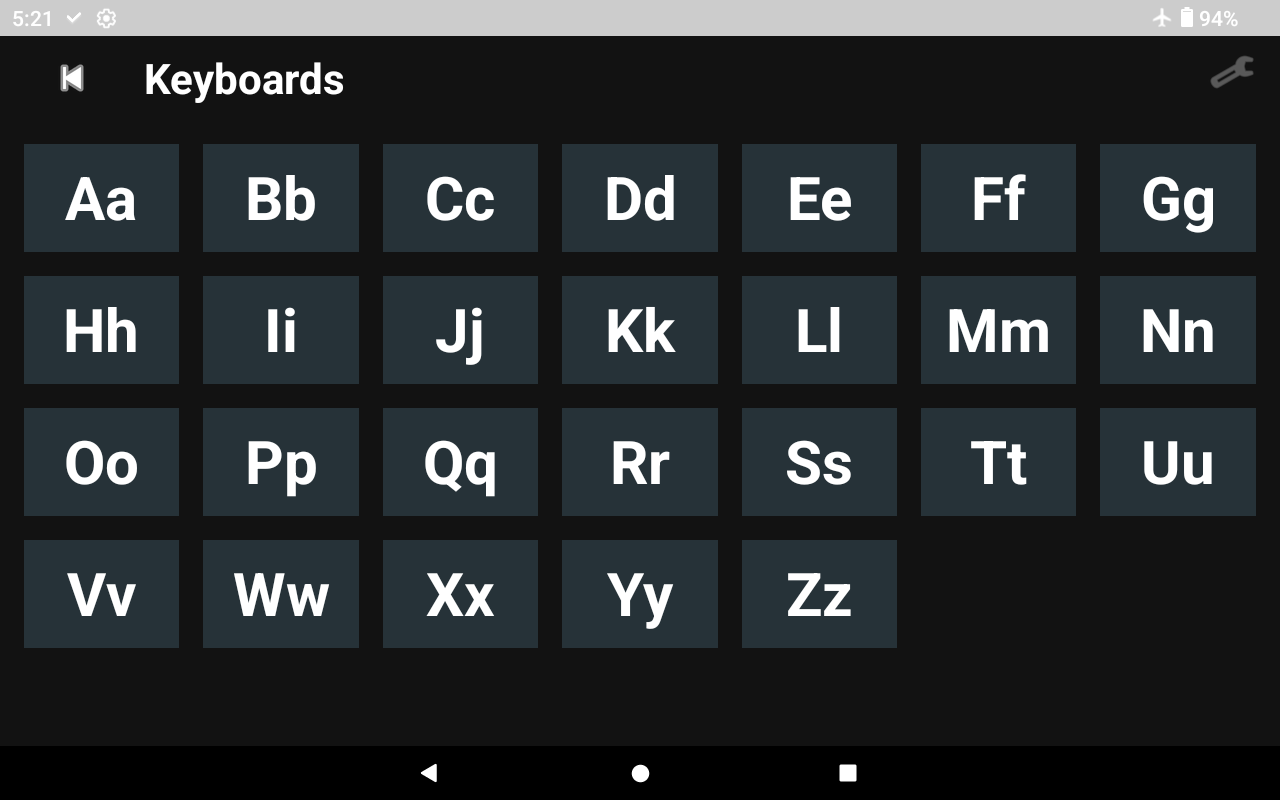
High-Contrast Letter Tiles (Shown in “Both: Aa, Bb, Cc” Mode)
Presents all 26 letters in a clean, distraction-free grid. Depending on your chosen Interaction Mode, tapping tiles either speaks the letter immediately, builds words, or guides phonetic word discovery.
6. Built-In FreeVoice AAC
For families and SLPs who also want a traditional, category-based, hierarchical AAC experience, undenAIably embeds a full, unrestricted, offline-accessible copy of FreeVoice AAC—100% free forever.
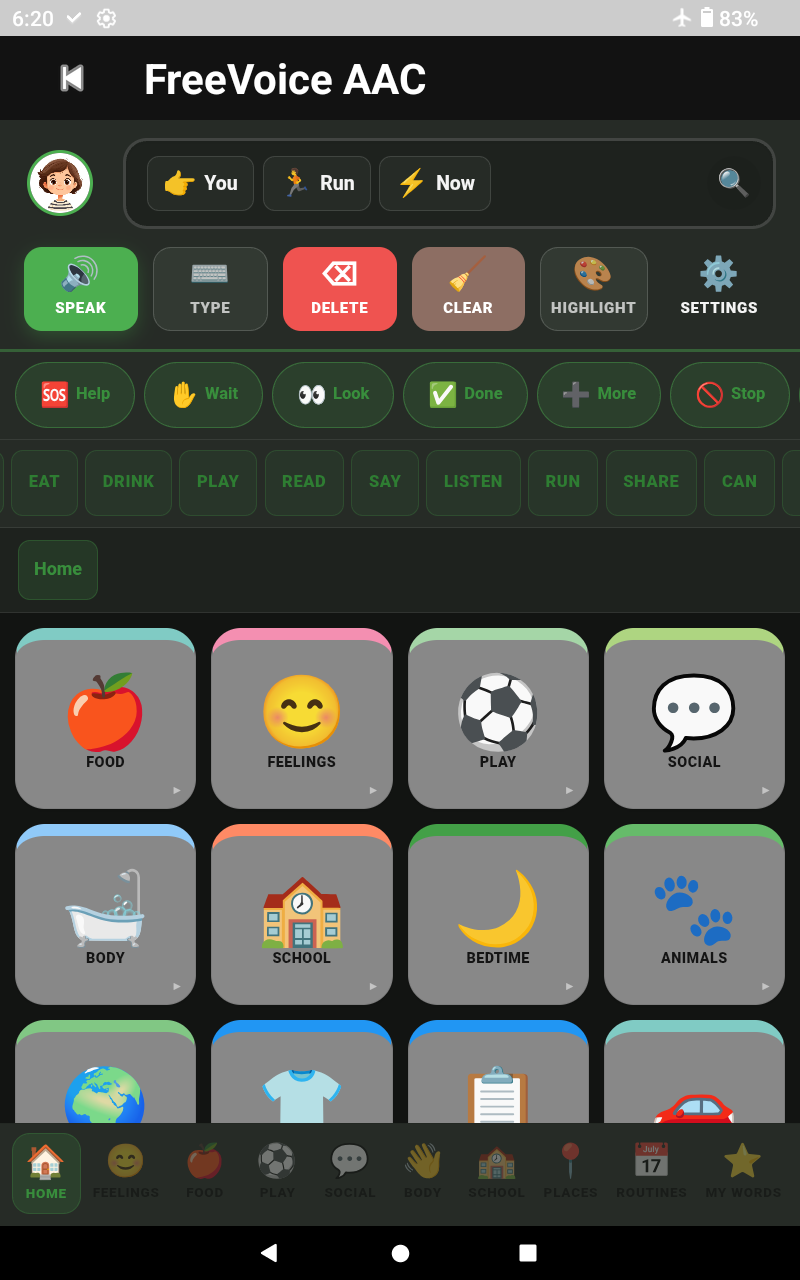
Exit Back to undenAIably
Tap the top-left back icon at any time to return to the main undenAIably dashboard.
7. Settings Drawer, Literacy Mode & ᗢ Credits
Tap the Wrench Icon on the left edge of the Main Dashboard to open the Settings Drawer. This provides access to the main application settings and voice, credit, and storage controls.
Top of Settings Drawer: Modes & Voice Setup
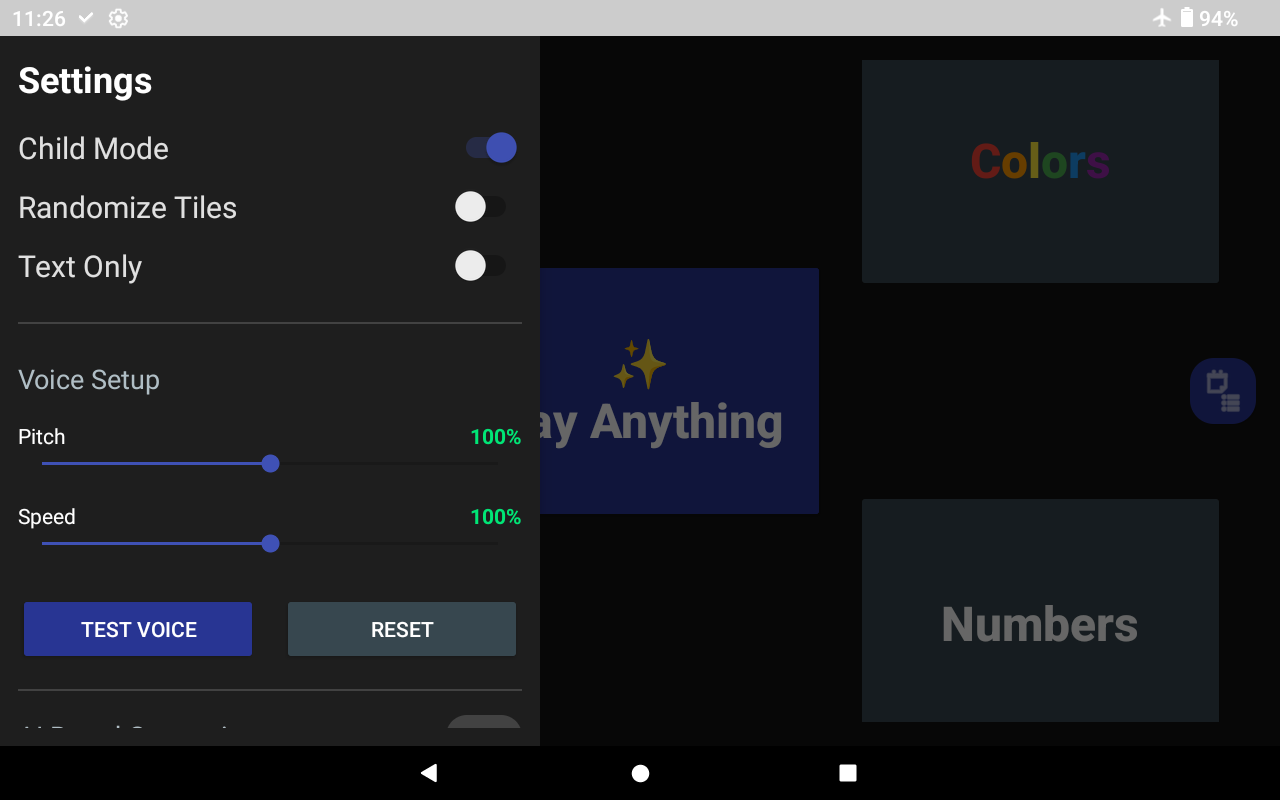
Child Mode Toggle (Recommended for Daily Use)
Switches the central dashboard tile from “Ask Anything” to “Say Anything”, replaces the prompt editor with the visual board navigator, and locks settings and board editing behind your device’s Fingerprint/Face/PIN authentication wall.
Bottom of Settings Drawer: ᗢ Credits & Board Management
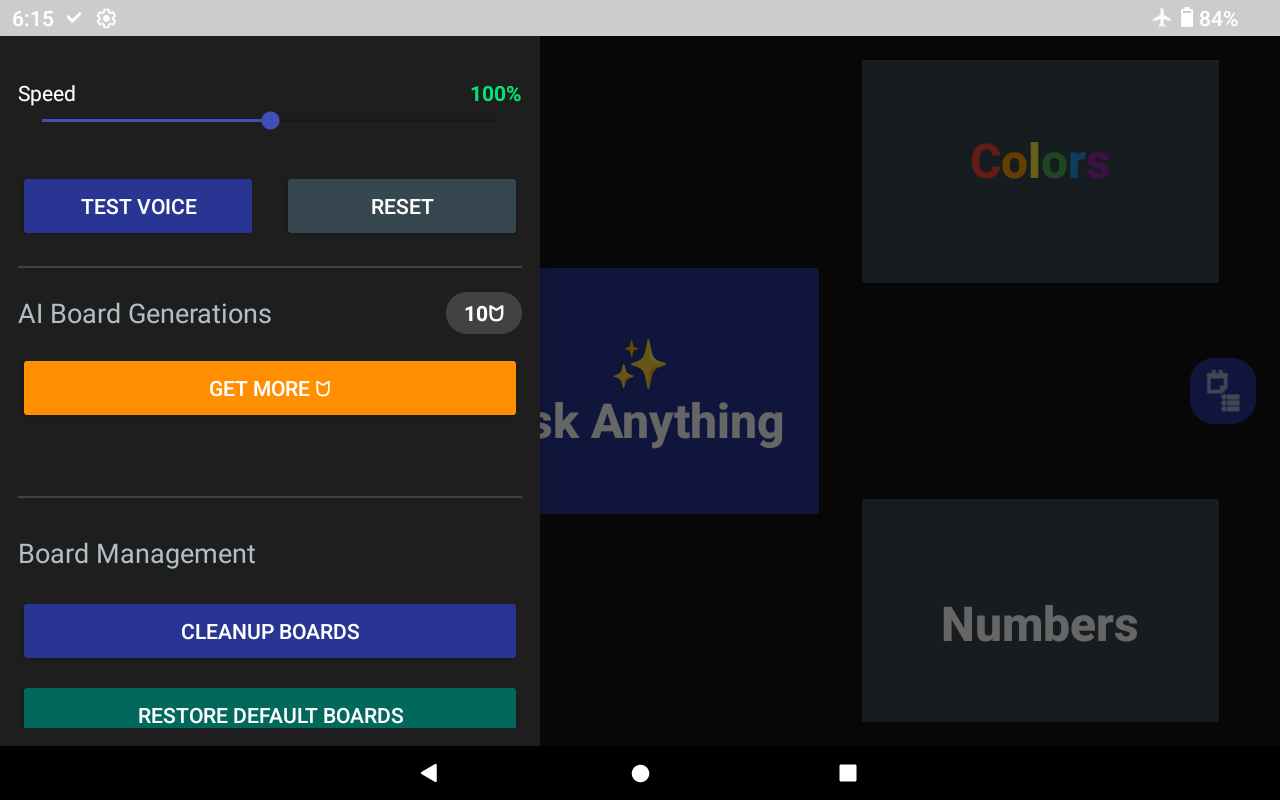
What is “ᗢ”? (AI Generation Currency)
The “ᗢ” icon represents your AI Board Generation credits. Every install starts with 10 free ᗢ. Generating a new custom AI board via text or photo uses 1ᗢ; using built-in boards, cached boards, or QR-imported boards uses 0ᗢ.
8. Yes / No Binary Decision Board
The Yes / No module provides an immediate, ultra-low-friction binary choice board for fast daily questions, comprehension checks, and urgent needs—with oversized targets to support developing fine motor skills.
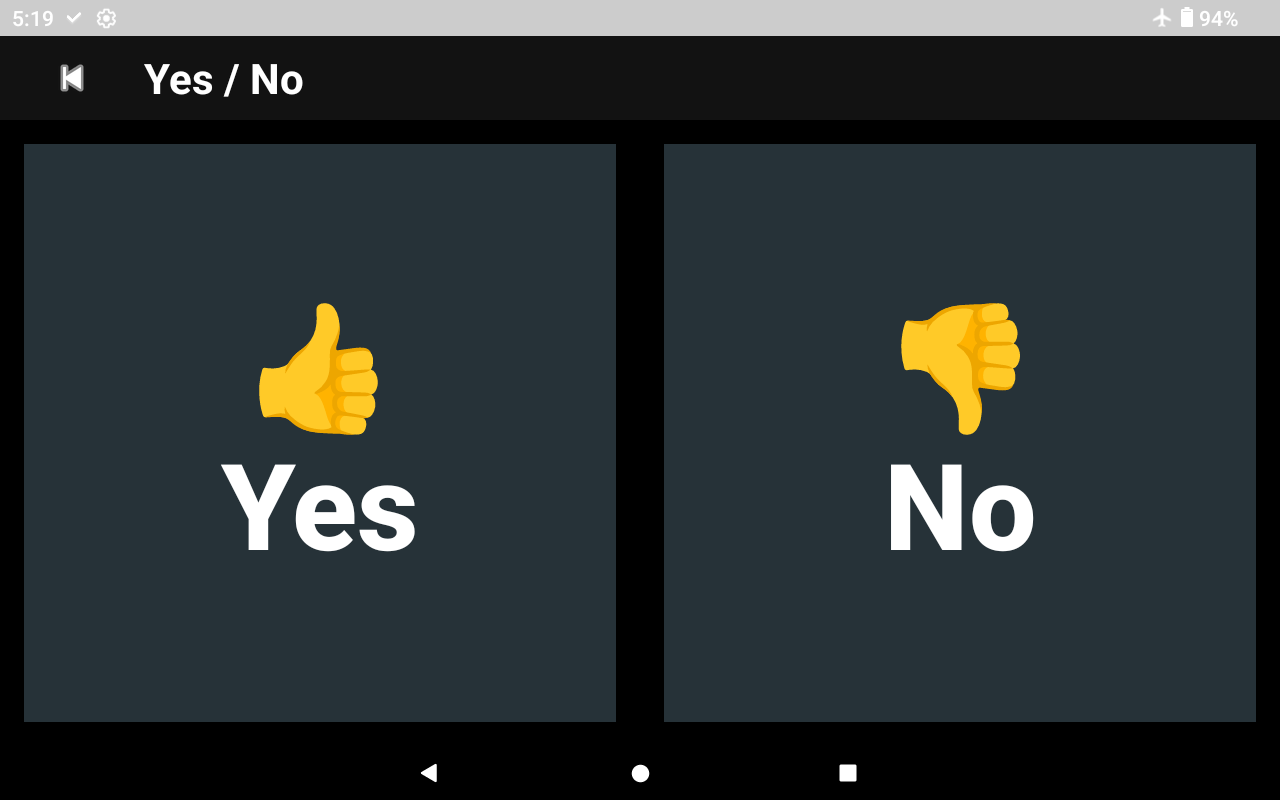
Affirmative “Yes” Tile
Speaks “Yes” aloud clearly when tapped. When “Text Only” (Literacy Mode) is enabled in the main Settings drawer, the thumbs-up emoji is hidden so only the high-contrast word “Yes” is displayed.
9. Colors Module & Contextual Hinting
The Colors module is designed to bridge color recognition and sight-word reading. Using its built-in configuration menu, you can progressively fade the visual color cue (“contextual hinting”) as your child learns to read the color words independently.
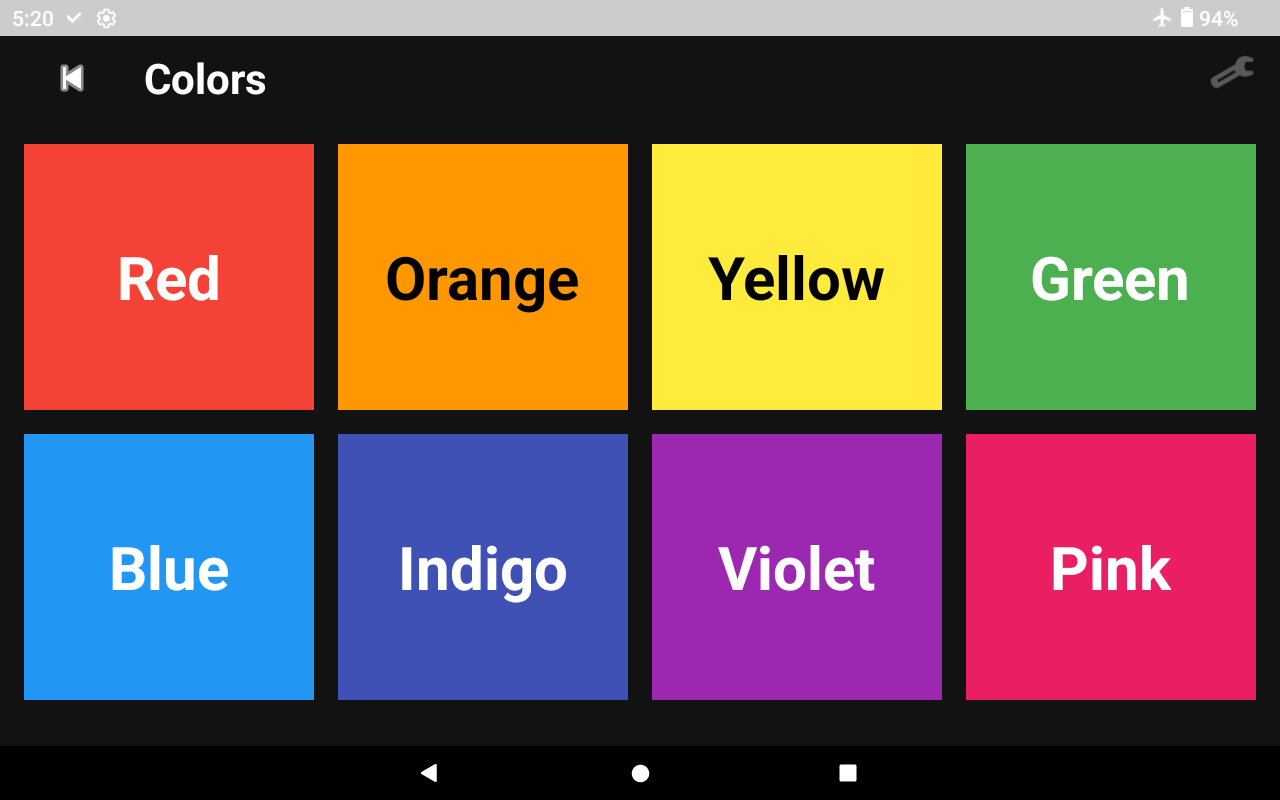
Full Color Swatch Tiles
In “Full Color” mode, each entire button is filled with the target color and paired with high-contrast text (automatically switching between white and black lettering for optimal legibility). Tapping any tile speaks the color name aloud.
Configuring Contextual Hinting & Active Colors
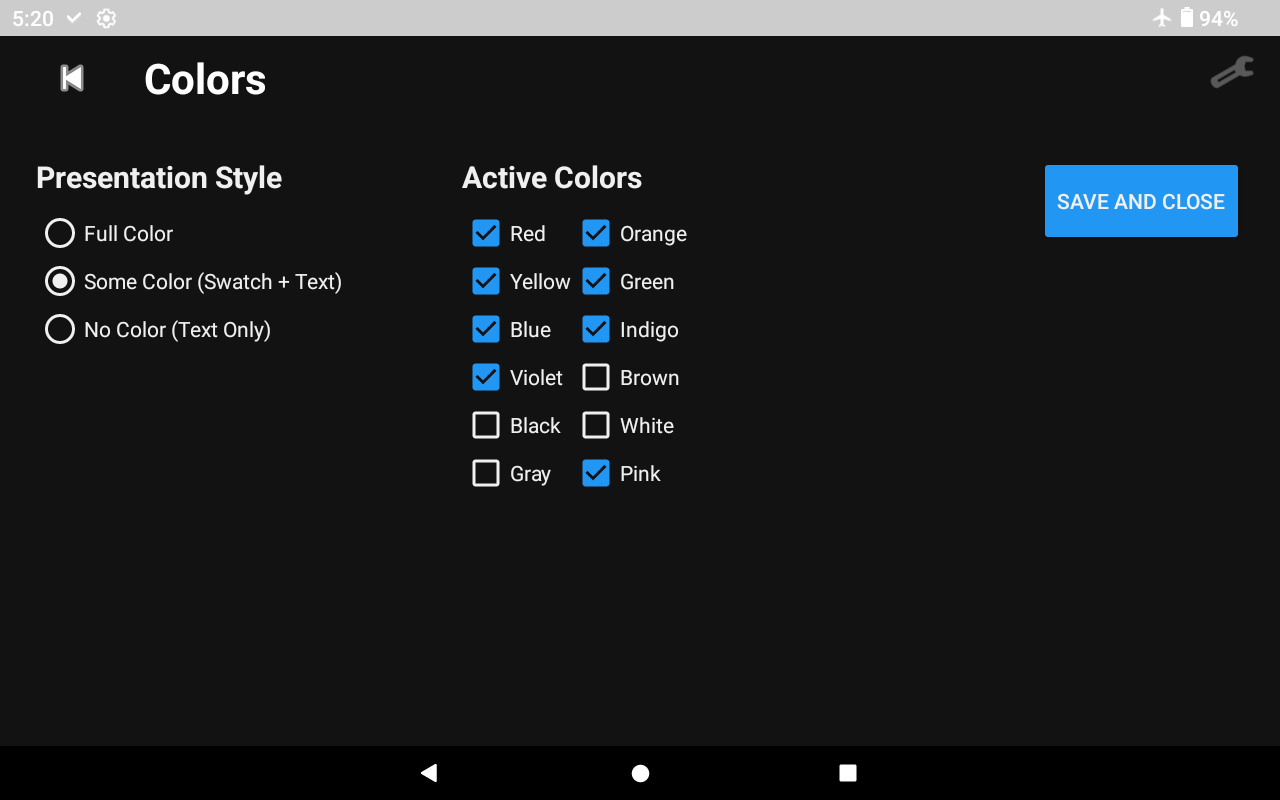
Presentation Style (3 Levels of Contextual Hinting)
Choose “Full Color” (entire tile colored), “Some Color (Swatch + Text)” (neutral dark tile with a colored circle and matching colored text), or “No Color (Text Only)” (pure white text on dark tiles to test true sight-word reading without color cues).
Example: “Some Color (Swatch + Text)” Mode
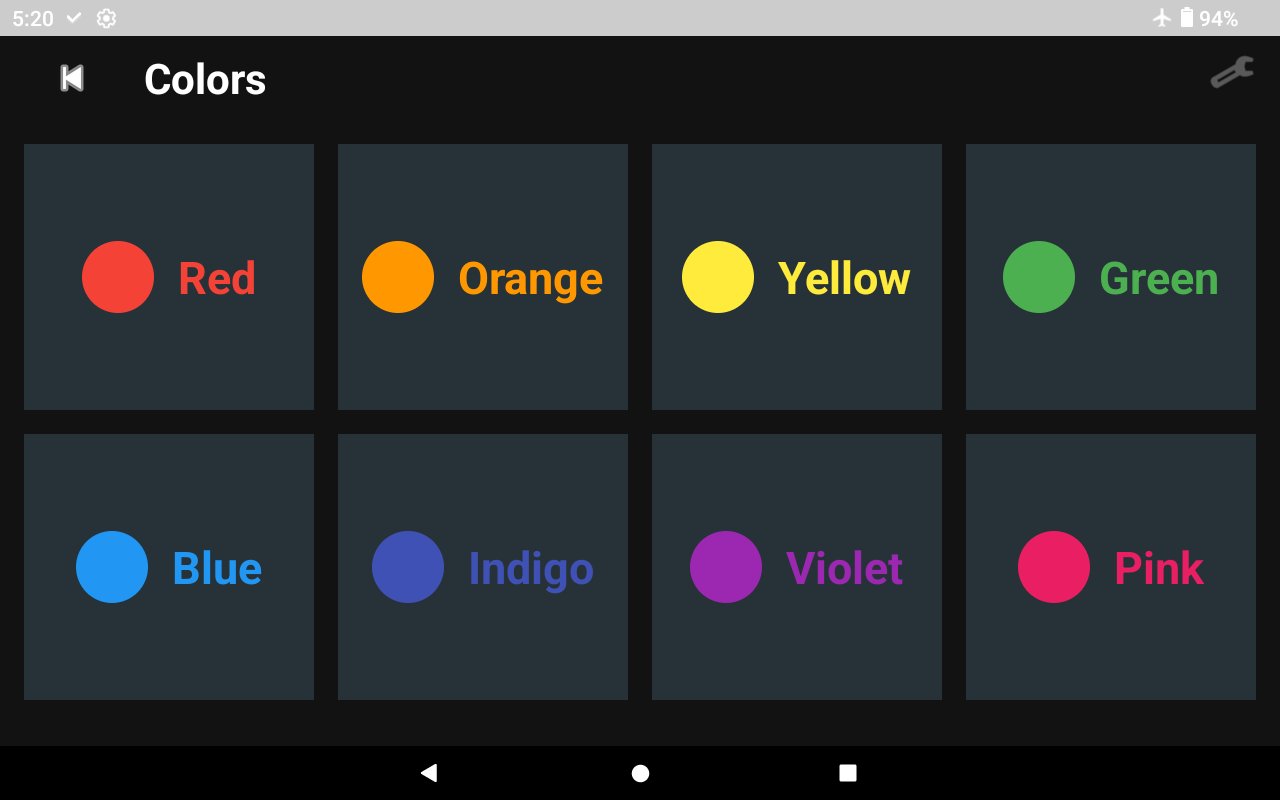
Reduced Visual Overload + Orthographic Bridging
In “Some Color (Swatch + Text)” mode, the uniform dark background prevents sensory glare while pairing a compact color dot with color-tinted lettering—helping transition learners from color matching to word reading.
10. Numbers & Step-Counting Module
The Numbers module turns early numeracy and skip-counting into an interactive communication activity. Caregivers can customize both the counting interval and the exact range of numbers displayed on screen.
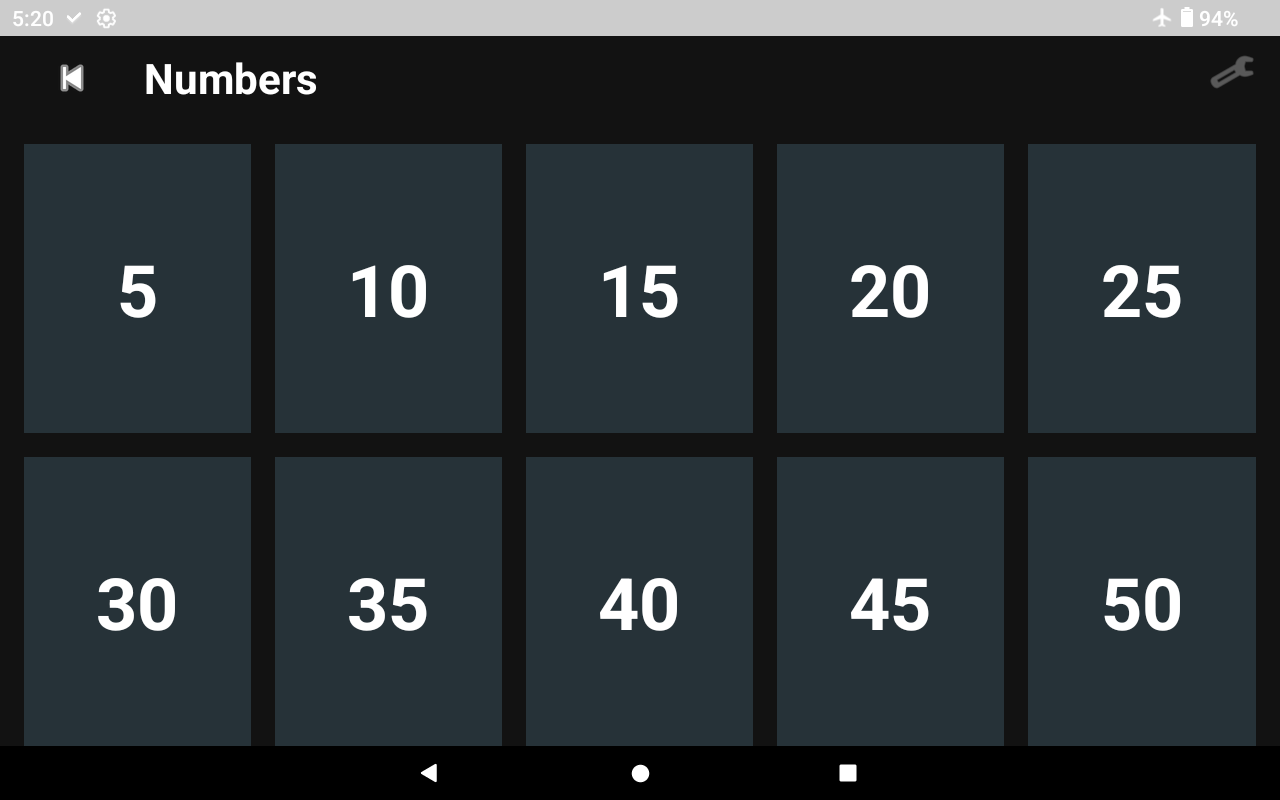
Interactive Number Tiles (Shown Counting by 5s)
Tapping any number tile speaks the number aloud.
Configuring Counting Steps & Active Numbers
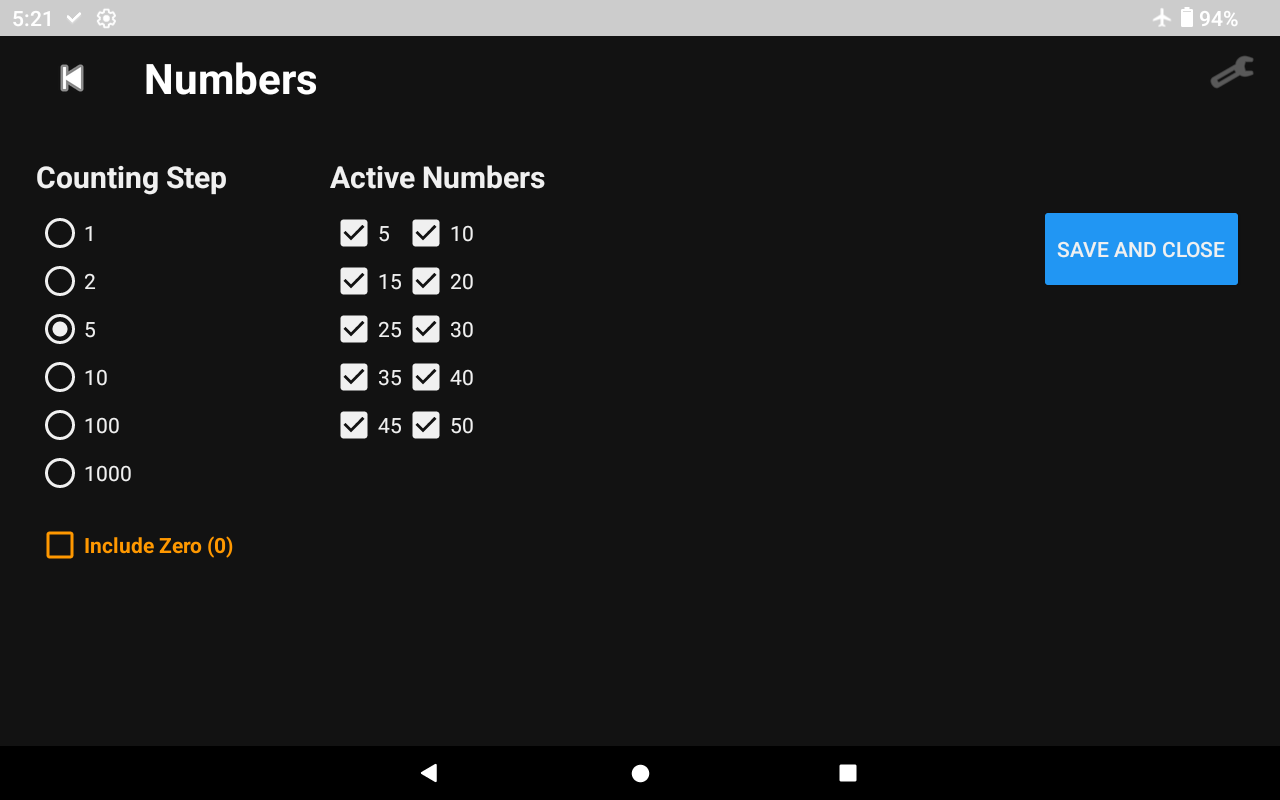
Counting Step Interval (1, 2, 5, 10, 100, 1000)
Select your desired step-counting interval. Choosing a new Counting Step automatically updates the “Active Numbers” list next to it with multiples of that interval (up to 10 steps).